Audio Unit plugin for Logic Pro
gain stage
Know whether your levels are right, in plain English. Put it anywhere in your signal chain and it tells you if the level suits what comes next, and how to fix it if not.
Version 1.0.0. Free. macOS 11 or later, Apple Silicon and Intel. Signed and notarised by Apple.
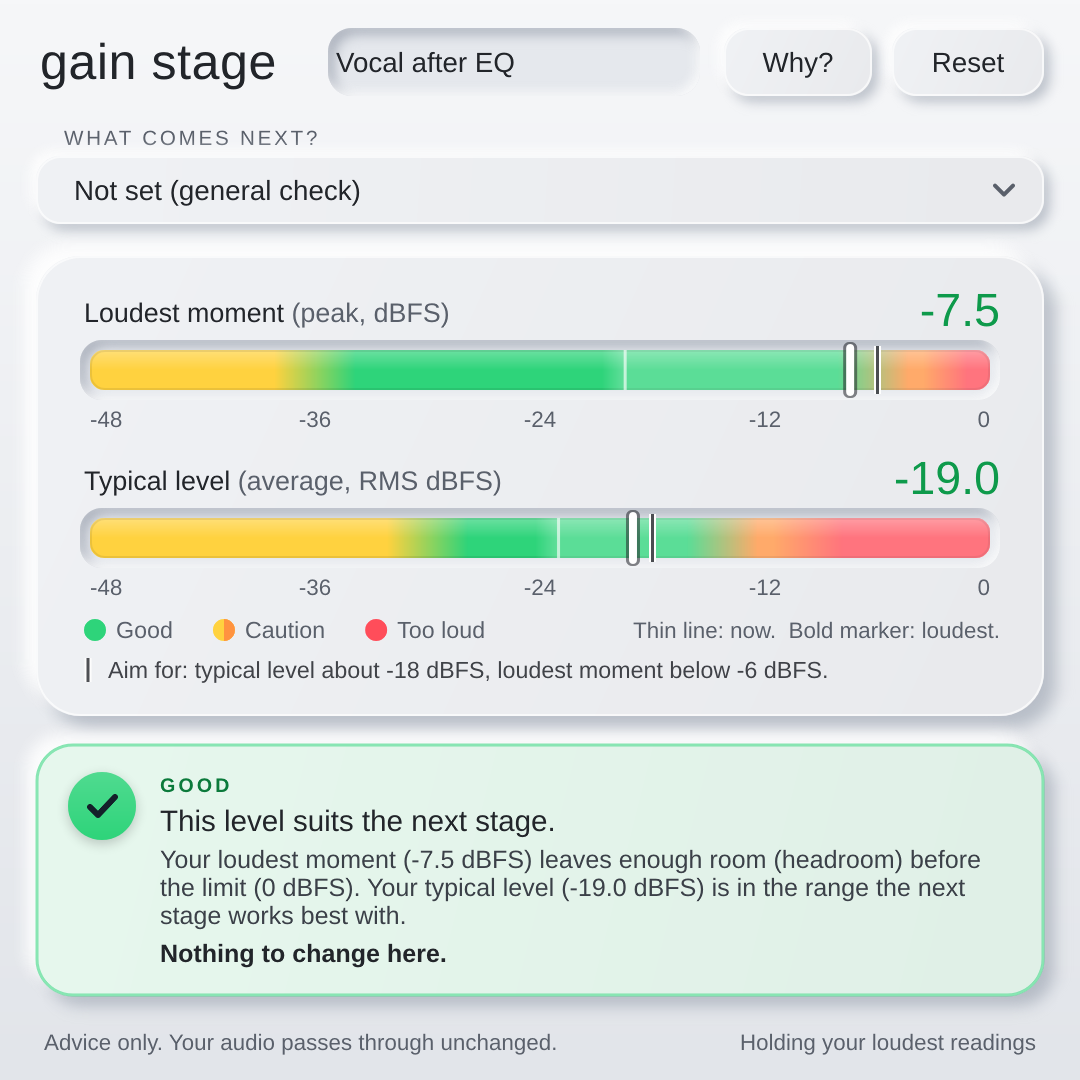
Gain staging, without the guesswork
Good levels at every step give your plugins room to work and stop distortion creeping in. Most people were never taught how to check. Gain Stage checks for you, and explains why.
Plain English first
Advice is written for people, not engineers. The proper terms (dBFS, RMS, LUFS, true peak) sit in brackets beside it, so you learn them as you go.
Tells you what to do
Not just "too loud", but "turn the gain down by about 4 dB", and where to do it. Press Reset and listen again to confirm the fix.
Never touches your sound
It listens and advises. The audio passes through unchanged, so you can leave it in place while you work. The fixes happen at the source, where they belong.
How it works
Insert it as many times as you like, wherever you want a check.
- Insert itAdd Gain Stage to any channel, in any insert slot, and name it so you remember where it is.
- Say what comes nextPick the stage that follows: a compressor, an amp plugin, reverb, a bus or the final bounce.
- Play your loudest partIt holds the loudest readings, so you only need to play the part that matters.
- Read the verdictGood, caution or too loud, with a short explanation and a clear next step. Tap Why? to learn the reason.
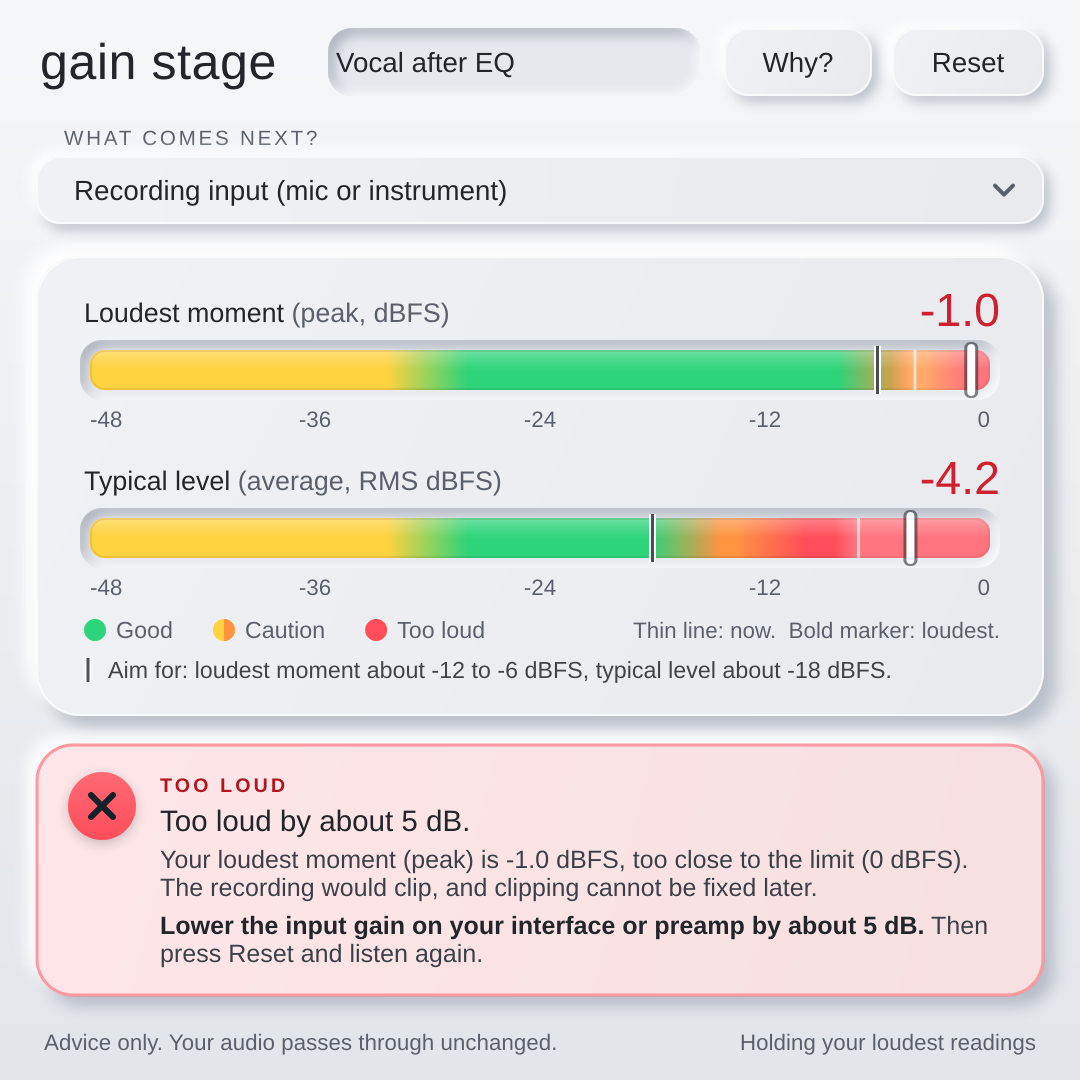
Check your levels before you record
Set it to Recording input, arm your track, switch on Input Monitoring, and sing or play. You see your level live, with a faint shading that follows the signal, and a verdict the moment you have played your loudest part.
Catch a mic or preamp that is too hot before it becomes a take you cannot fix.
- Live level shading, with a bold marker for your loudest moment
- A clear aim shown on the meter, so you do not need to remember the numbers
- Specific advice on the interface or preamp gain, in dB
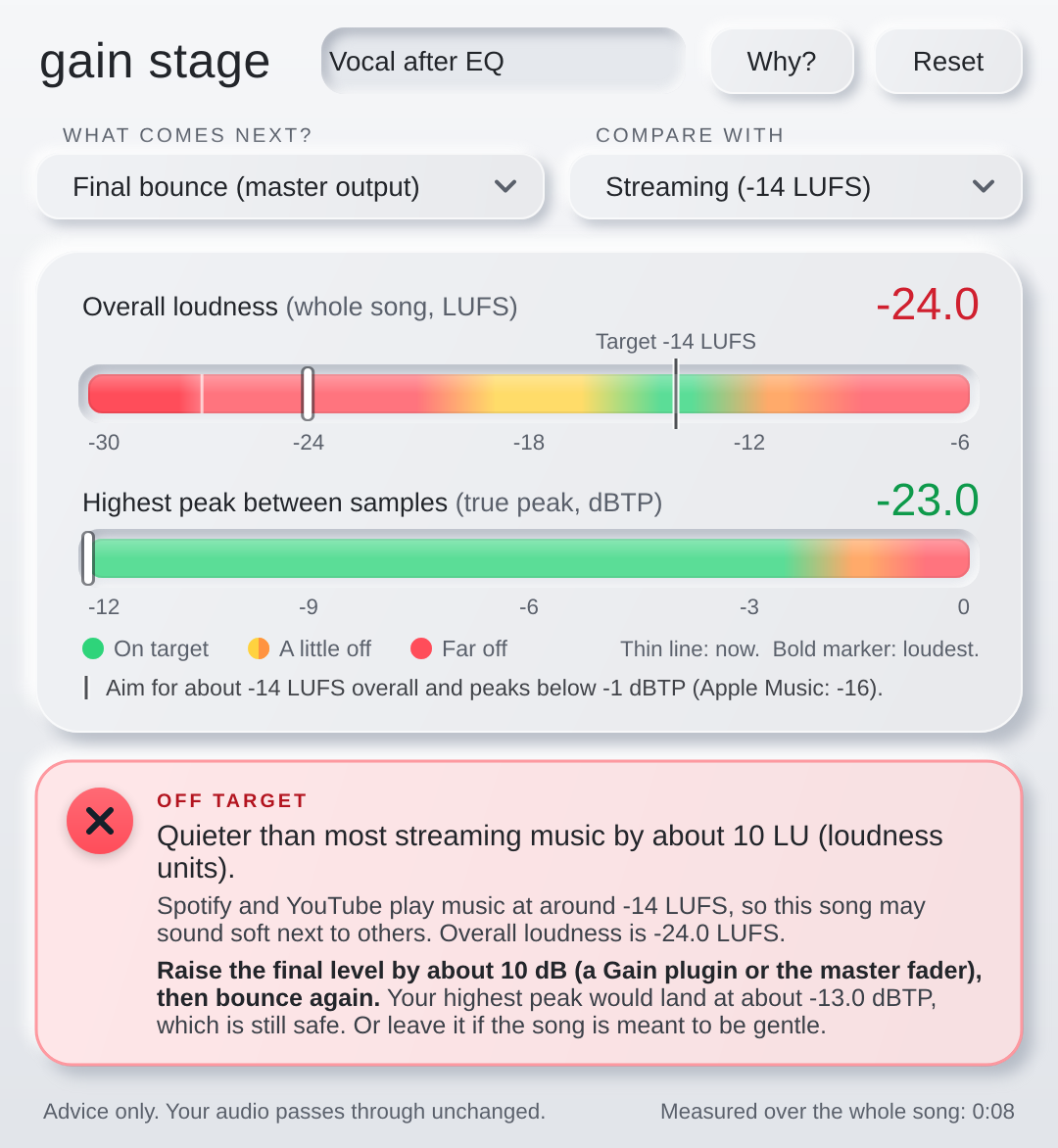
Ready for streaming
On your master output, switch to Final bounce. Gain Stage measures the whole song and compares it with the loudness streaming services aim for, so your music sits comfortably next to everything else.
It tells you the gap in loudness units (LU) and in decibels (dB), and says whether a simple gain change is enough or whether you need a limiter to stay clear of distortion.
- Targets for Streaming (-14 LUFS), Apple Music (-16 LUFS) and Acoustic (-18 LUFS)
- Overall loudness (LUFS) and highest peak between samples (true peak, dBTP)
- Plain advice: raise by about 2 dB, or use a limiter with its ceiling at -1 dB
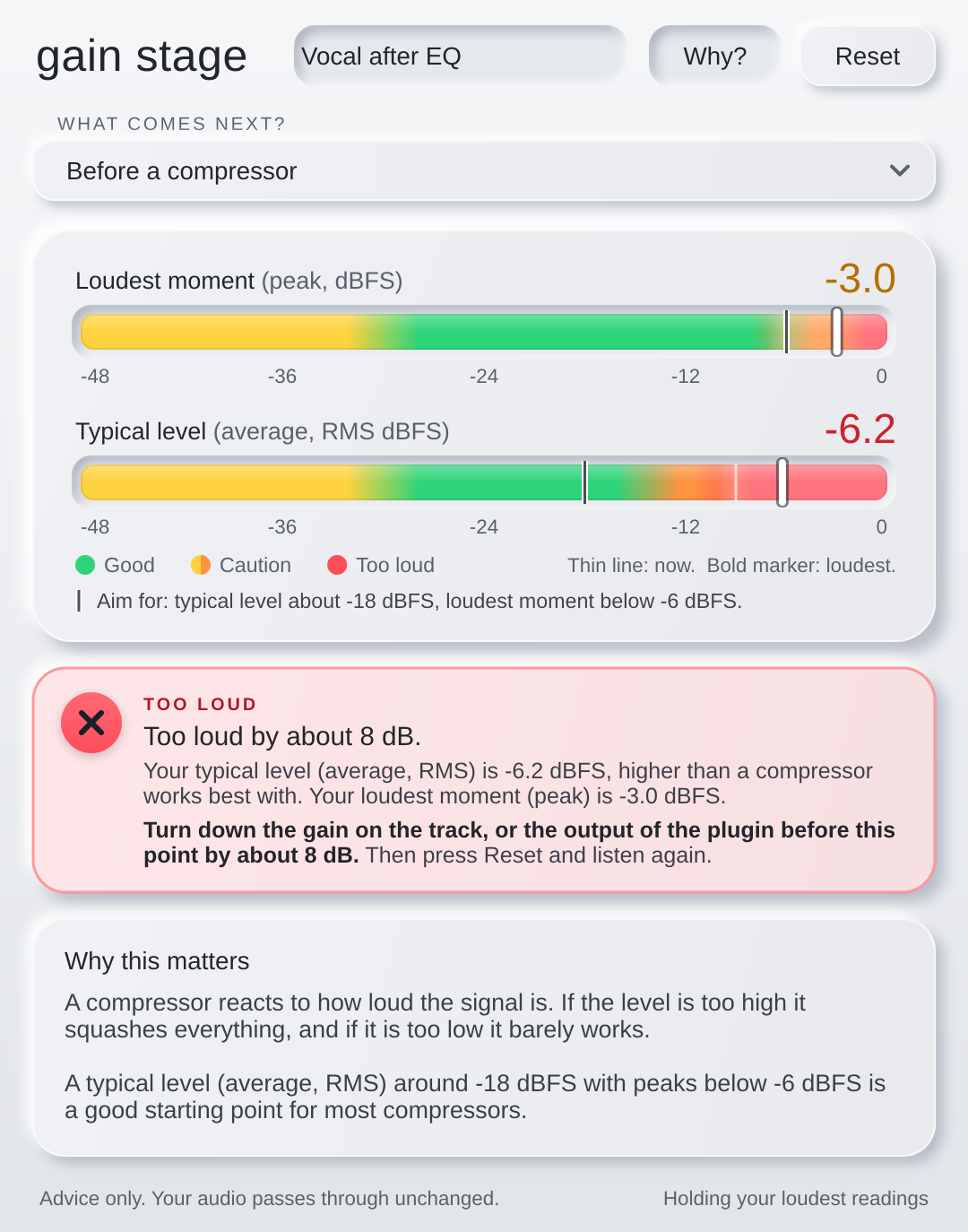
Right for every stage of the chain
Each stage wants a slightly different level. Gain Stage knows the difference, and tells you why it matters.
| Choose | What it checks |
|---|---|
| Recording input | Mic or instrument level before you record, so you leave room and avoid clipping. |
| Before a compressor | A typical level a compressor works best with, without squashing the loudest moments. |
| Before an amp or saturation plugin | The level that drives the plugin the way it was designed to be driven. |
| Before reverb or delay | Enough signal for the effect to behave, with headroom for what it adds. |
| Before a group (bus) channel | Headroom, so a group of tracks does not push the bus over the edge. |
| Final bounce (master output) | Overall loudness and true peak against a streaming target. |
| Not set (general check) | A sensible all-round check when you are not sure what comes next. |
Questions
Does it change my audio?
No. Gain Stage only measures. Your signal passes through exactly as it came in, so it is safe to leave in your project.
What do I need?
A Mac running macOS 11 or later, and a host that supports Audio Units. It is built and tested for Logic Pro. It may work in other Audio Unit hosts such as GarageBand or MainStage, but those are not tested. It is not a VST or AAX plugin, so it does not run in Pro Tools or on Windows.
How do I install it?
Open the downloaded installer and follow the steps. It is signed and notarised by Apple, so it should open without warnings. Then open Logic Pro and find Gain Stage in the Audio Units menu under Peter Chater. If it does not appear, go to Logic Pro, Plug-in Manager, select Gain Stage and choose Reset & Rescan Selection.
I do not see any level when I am recording
Arm the track (R) and switch on Input Monitoring (I). On a laptop, use headphones or an audio interface: Logic mutes monitoring when the built-in microphone and speakers are used together, and Gain Stage can only show what Logic sends to it.
How do I remove it?
Quit Logic Pro, then delete Gain Stage.component from /Library/Audio/Plug-Ins/Components on your Mac.
Does it collect any data?
No. It does not connect to the internet and does not collect, store or send any information about you or your music.
Which loudness targets does it use?
Streaming (-14 LUFS), Apple Music (-16 LUFS) and Acoustic (-18 LUFS), each with a true peak ceiling of -1 dBTP. They are sensible starting points, not strict rules, and different services can change theirs.
Get Gain Stage
Version 1.0.0 for Mac. Free to download.
macOS 11 or later. Apple Silicon and Intel. Audio Unit (AU).